If you are ready to start trading through the Derayah app, it helps to understand how an order moves from start to finish.
This guide takes you through the full process, from checking and funding your portfolio to selecting a stock, placing a buy or sell order, and tracking its execution.
Check and Fund Your Portfolio
Home Screen
Select the correct portfolio and confirm that you have enough available cash before placing an order.
How to Make a Deposit
Open the Deposit Options
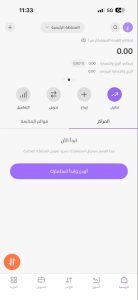
From the home screen, tap the plus (+) icon or select Deposit.
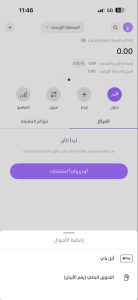
Choose a Deposit Method
Select the funding method that suits you:
- Apple Pay
- Samsung Pay
- Bank transfer using your portfolio IBAN
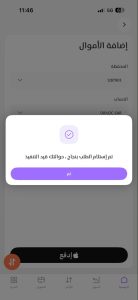
Deposit Request Submitted
Once you complete the deposit steps, a message will confirm that your request is being processed.
Funds Added to Your Portfolio
When the transfer is completed, your updated cash balance will appear in the app. You may also receive a confirmation message from Derayah.
How to Buy Stocks
Once your portfolio is funded, you can start a buy order in two ways.
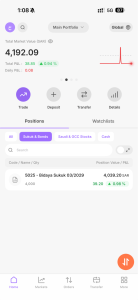
Start from the Home Screen
Tap the orange button at the bottom of the home screen to create a new order.
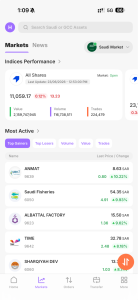
Start from the Market Page
You can also visit the Market page to explore index performance, top gainers, and top decliners, then select the company you want to invest in.
Open a New Order
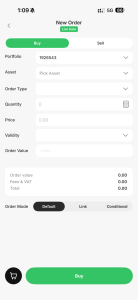
On the New Order screen, select the portfolio you want to trade from and begin entering the order details.
Search for the Stock
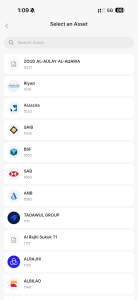
Search by company name or ticker symbol, then confirm that you have selected the correct stock.
Choose the Order Type
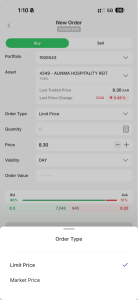
Select one of the following:
Limit Price
You set the highest price you are willing to pay. The order will only be executed at that price or lower, giving you greater control over the execution price.
Market Order
The order is submitted at the best available price in the market. It is usually executed more quickly, but the final execution price may differ from the price shown when the order was submitted.
Quantity
Enter the number of shares you want to buy.
Price
If you select a limit order, enter your preferred purchase price.
Choose the Order Validity
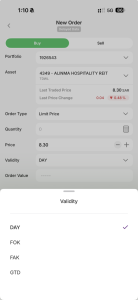
Order validity determines how long the order remains active and how it should be handled if it cannot be fully executed.
Day
The order remains active until the end of the current trading session. Any unexecuted quantity expires at the end of the day.
Fill or Kill
The entire order must be executed immediately. If the full quantity is unavailable, the whole order is cancelled.
Fill and Kill
Any available quantity is executed immediately, while the remaining quantity is cancelled.
Good Till Date
The order remains active until the date you select, unless it is executed or cancelled earlier.
Choose the Order Setup
The app also gives you different ways to structure the order:
Default
Places the order using the standard details and conditions you entered.
Link
Links the main order to related orders, such as an exit or protection order.
Conditional
The order is only submitted after a condition you set has been met.
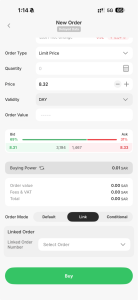
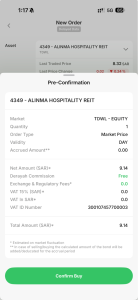
Review and Confirm the Buy Order
The order confirmation page shows all the information you entered.
Review the stock, quantity, order type, price, validity, estimated value, and fees. If everything is correct, tap Confirm Buy.
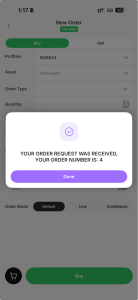
Buy Order Received
Once the order is submitted, a confirmation message will appear with the order number.
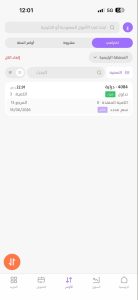
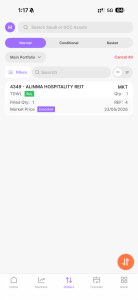
Track the Order
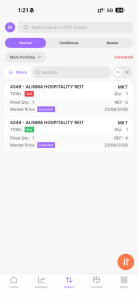
You can follow the order from the Orders page. If it has not yet been executed, it may appear as pending or in progress.
Buy Order Executed
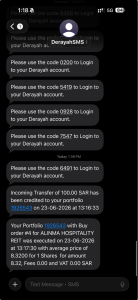
Once the order is executed, Derayah will send you a text message with the transaction details, including the stock name, quantity, execution price, and total value.
How to Sell Stocks
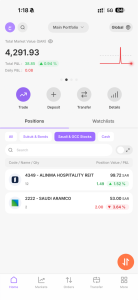
View Your Current Positions
From the home screen, open Positions to view the stocks in your portfolio, along with the quantity, market value, and profit or loss for each position.
Select the Stock
Choose the stock you want to sell and open its details page.
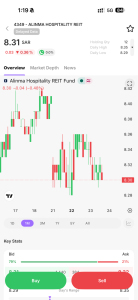
Start the Sell Order
Tap Sell at the bottom of the stock details screen.
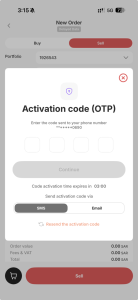
Verify Your Identity
A verification code will be sent to the mobile number registered on your account. Enter the code and tap Continue.
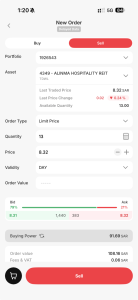
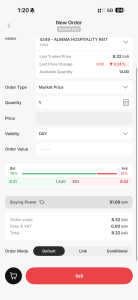
Enter the Sell Order Details
Enter the number of shares you want to sell, then choose the order type, price, and validity.
Limit Price
Set the minimum price you are willing to accept. The order will only be executed at that price or higher.
Market Price
The order is submitted at the best available market price at the time of execution.
Review the Sell Details
Check the stock, quantity, order type, price, and validity, then tap Confirm Sell to continue.
Review the Sell Order Summary
A complete summary will appear, including the number of shares, order type, price, estimated transaction value, and fees.
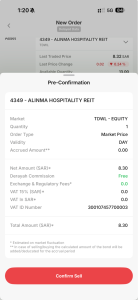
Confirm the Sale
Review all the information carefully. If everything is correct, tap Confirm Sell.
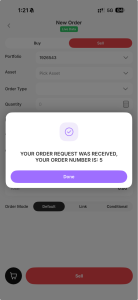
Sell Order Received
Once the order is submitted successfully, a confirmation message will appear with the order number.
Track the Sell Order
Visit the Orders page to follow the order and check whether it is pending, partially executed, fully executed, or cancelled.